
Xero Fixed Assets: Complete Guide for Tangible & Intangible Assets
What Are Fixed Assets?
Fixed assets are long-term assets used to generate income and deliver services, and they typically depreciate over time. These can be:
- Tangible assets: e.g. laptops, vehicles, machinery
- Intangible assets: e.g. software licences, trademarks, patents
In Xero, both tangible and intangible assets are managed through the Fixed Asset Register, following the same process and depreciation schedule.
What you need to know
- You need the advisor user role to maintain the fixed asset register (register an asset, run depreciation and dispose of an asset)
- The mandatory fields in an asset’s record must be completed before you can register the asset.
- We recommend you have no more than 500 registered fixed assets in Xero.
How It Works
- Purchase the asset → Code the transaction to a Fixed Asset account
- Register the asset → Either manually or from a bill
- Depreciate the asset → Xero auto-calculates depreciation monthly based on asset type & method
- Dispose the asset → When the asset is no longer in use (e.g. sold, scrapped, or licence expired), dispose the asset by clicking the Dispose button.
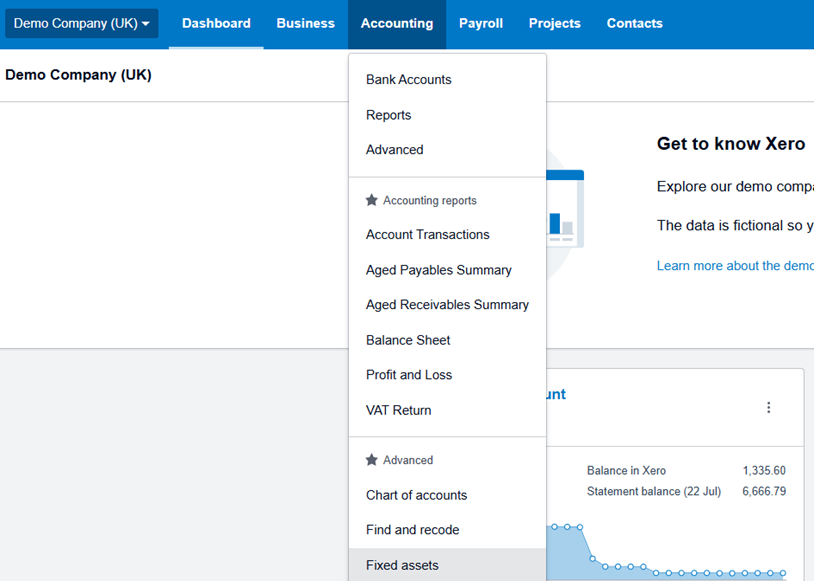

This dashboard shows:
Draft: Transactions that have been recorded to a fixed asset account will show within the Draft tab, and will remain here till registered. From here you will need to click into the Asset & register this
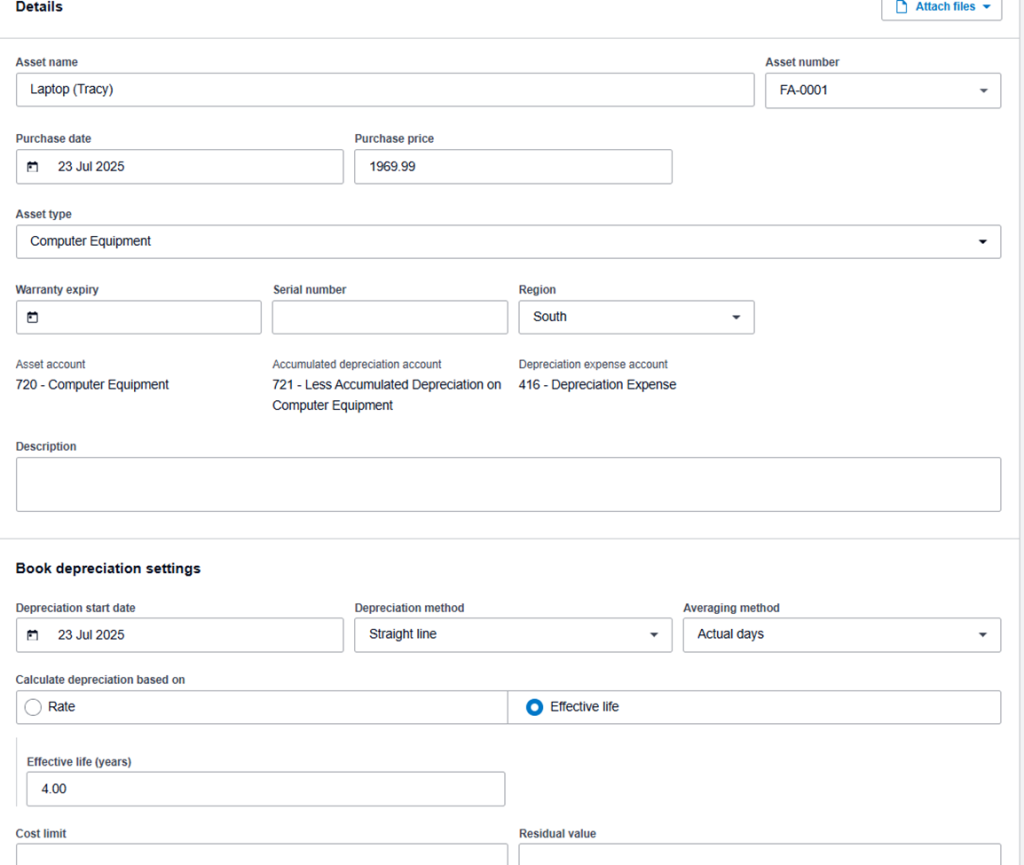
- Select Purchase Date as Purchase bill/Invoice date.
- Purchase price will be the net value (excluding any VAT if any)
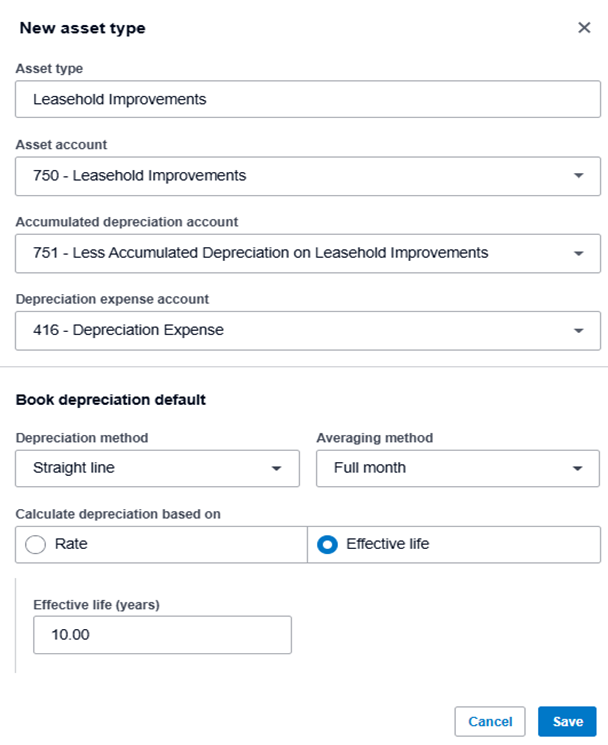
- Choose Asset Type, i.e. Computer Equipment. If it is a New Asset, you can set this up: Example below for Leasehold Improvements.
- When you select Leasehold Improvements going forward, it will save these details for any New Assets.
- Description is needed but not essential
- Select Depreciation Start Date as date of Purchase bill/Invoice.
- Select Depreciation Method, Straight line, Reducing Balance or Full depreciation at purchase.
- Select Average method (if depreciation is calculated based on a full month or actual days). Actuals days for example, takes into account the number of days in a particular month whereas full month spreads the same amount per month over the year regardless of the number of days.
- Select Rate OR Effective life of the Asset.
- For example, 25% Rate will mean the Asset is depreciated over 4 years, 33.33%, 3 years etc.
- If you choose Effective Life, put in the number of years in the Effective life (years) field or if Rate put this in the Rate field as a percentage number. It will automatically put this in as a percentage.
👉 Xero treats intangibles the same way — software or licence purchases coded to an “Intangible Fixed Asset” account will also appear here.
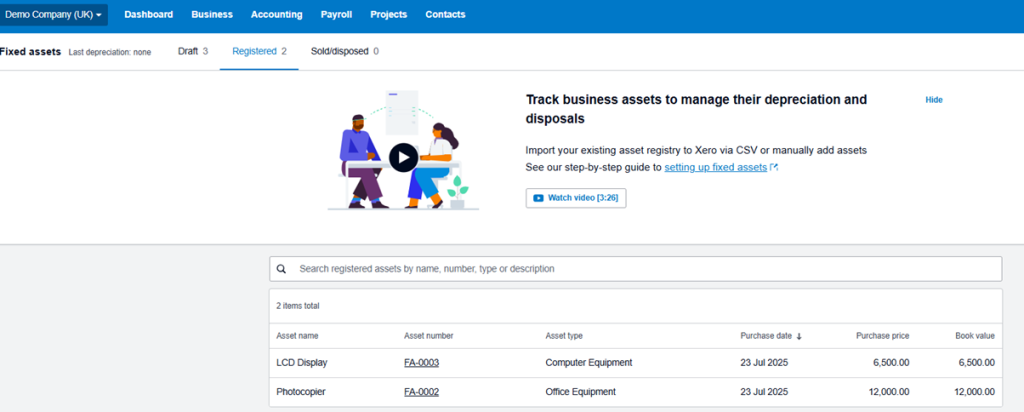
- Registered : Once Registered, it then displays in the registered section of the Fixed Asset tab. You are able to look into each one directly.

- 🗑️Sold/disposed
When an asset is no longer in use, you must dispose of it in Xero to stop further depreciation.
Disposing of a fixed asset in Xero means removing it from the asset register and stopping depreciation from continuing. This applies when an asset is:
- Sold
- Scrapped
- Written off
- Returned (if leased or incorrectly capitalised
How to Dispose of an Asset in Xero :
- Select the Asset you want to dispose of.
- Click ‘Dispose’ – You will find this in the top-right of the asset screen when you click into a registered asset.

- Enter Disposal Date
- Enter Proceeds (Sales Value, if any).
- Choose Disposal Account (Usually a Gain/Loss on Disposal Account
✅ Tip: Intangibles like software licences can be depreciated on a straight-line basis over their useful life (e.g. 3 years).
How to run Depreciation :
- Click Run Depreciation on the main fixed assets section.
- Choose the time period to depreciate & click confirm

How to roll back depreciation :
- To roll back depreciation, click ‘rollback depreciation’ top right when you click the run depreciation tab.
- From here you can select the date range you want to rollback depreciation to.

Note: You can’t roll back depreciation for periods that are locked in Xero. Adjust the lock date temporarily if needed.
Common Issue: Drafts Not Created
If you recode a bill from a P&L category (e.g. “Subscriptions”) to a Fixed Asset account after it’s posted, Xero does not move it to the Draft Asset section.
Solution: You must:
- Manually create a new asset via + New Asset. This can be found on the main Fixed Asset screen.
- Reference the bill for tracking/audit
- Ensure correct depreciation settings are applied
Just recoding a bill to a different account won’t remove the asset from the register.
Common Pitfalls & How to Avoid Them
| Problem | What Goes Wrong | Solution |
| Recode bill to Fixed Asset late | No asset draft created | Manually register via + New Asset |
| Recode away from Fixed Asset | Asset remains in register | Manually Dispose or Delete the asset |
| Editing depreciation settings | Old depreciation not updated | Use Rollback, then Run Depreciation |
| Wrong asset type | Incorrect depreciation settings | Change asset type, rollback & re-run |
| Manual journals pre-Fixed Asset module | Duplicate depreciation entries | Remove manual journals, rely on Xero’s system |
| Depreciation rollback blocked | Period is locked | Temporarily unlock the financial period in Xero |
Asset Types You Can Track
| Type | Examples | Notes |
| Tangible | Computers, machinery, furniture | Tracked based on wear & tear |
| Intangible | Software, licences, trademarks | Still tracked via asset register |
| Low-value pooled | Items under capitalisation threshold | Grouped & depreciated as one |
Reports to Review Monthly
- Depreciation Schedule – monthly breakdown
- Fixed Asset Summary – cost, NBV, accum. dep.
- Fixed Asset Reconciliation – confirms GL = asset register
- Disposals Report – gain/loss and audit trail
Use these reports to support VAT returns, audits, or management accounts.
Internal Controls & Best Practices
- ✅ Code purchases to the right Fixed Asset category from day one
- ✅ Reconcile Fixed Asset register to the General Ledger monthly
- ✅ Always rollback before making depreciation changes
- ✅ Only dispose assets through the correct screen—not by recoding
- ✅ Train staff to identify capital vs expense (especially for intangibles like software)
- ✅ Limit access to register edits to key finance team members
Nothing on this page is intended to be or should be construed or taken as accountancy, investment, tax or any other kind of advice. We recommend individuals and companies seek professional advice on their circumstances and matters.
-

Guidance on parent companies involved in UK company transactions
23 February 2026
When a non-UK parent company pays suppliers or contractors on behalf of a UK subsidiary there are tax, accounting and legal issues to watch out for.
Bookkeeping and Others
-

Complete guide to Xero CIS
10 November 2025
For UK Contractors & Subcontractors under the Construction Industry Scheme
Bookkeeping, Others and Xero guide
-

Accounting for VAT on Grant Income
8 August 2025
Guide on how to account for VAT on Grant Income
Bookkeeping and VAT